⚠ To be verified — reported by a single source (spaziogames.it), not yet confirmed.
In GTA 6, players can utilize a discreet auto-drive feature that allows the game’s artificial intelligence to take control of the vehicle. While the vehicle travels at a realistic pace and respects traffic laws, it provides a unique way to experience the world of GTA 6 while your character navigates toward a set destination.
Steps
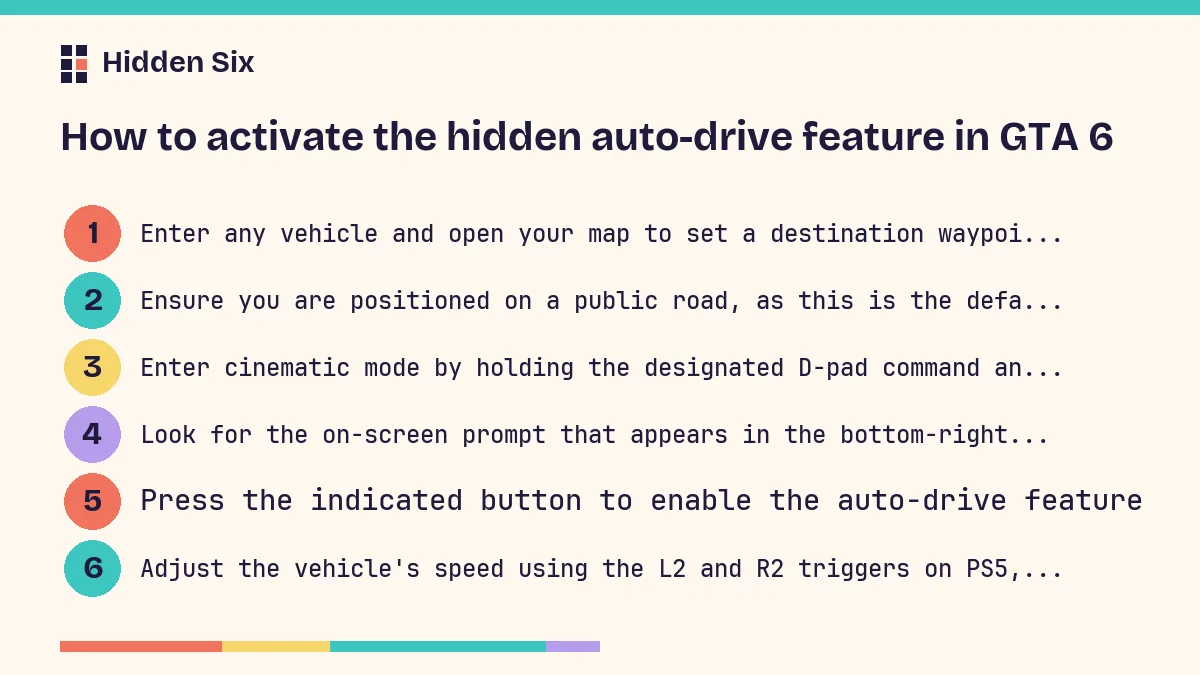
- Enter any vehicle and open your map to set a destination waypoint.
- Ensure you are positioned on a public road, as this is the default requirement for the system to function.
- Enter cinematic mode by holding the designated D-pad command and pressing the Options button on PS5 or the Menu button on Xbox.
- Look for the on-screen prompt that appears in the bottom-right corner of your display.
- Press the indicated button to enable the auto-drive feature.
- Adjust the vehicle’s speed using the L2 and R2 triggers on PS5, or the LT and RT buttons on Xbox, which offer three distinct speed levels.
- To regain manual control, hold the same command used to activate the feature and follow the on-screen instructions to disengage the AI.
How it works
The auto-drive system is designed for calm, non-combat travel. Even when set to the highest speed level, the AI driver remains cautious and prioritizes traffic safety, meaning it is not suitable for high-speed chases or dangerous situations where direct human input is required. By default, the system is restricted to paved roads. However, you can modify this behavior by navigating to the Settings menu, selecting the Gameplay section, and changing the auto-drive configuration to “unrestricted.” Once this setting is enabled, the AI will attempt to reach almost any location on the map, though it remains most reliable when following established road networks.
Tips
- Avoid pressing random buttons while the auto-drive is active, as certain inputs may cause your character to exit the vehicle unexpectedly.
- If you find the default speed too slow, remember that you can toggle between three different speed settings using your controller’s triggers.
- Always keep in mind that the AI is programmed to drive defensively, so manual control is still the fastest way to reach your destination if you are in a hurry.
- Use this feature as an opportunity to observe the environment from cinematic angles that are difficult to manage while driving manually.
Sources
- GTA 6 ha la guida automatica: ecco come attivarla — spaziogames.it